
Xieke Phone
iPhone and iPad · Pilot
Use your 4G SIM number on iPhone and iPad
Connect a voice and SMS capable 4G modem to a computer or NAS. Once the gateway is online, use the SIM’s number for calls and carrier SMS in Xieke Phone.
The gateway tools are available here. The app and cloud service are in pilot. Full setup requires a compatible gateway image and a dedicated pilot configuration.
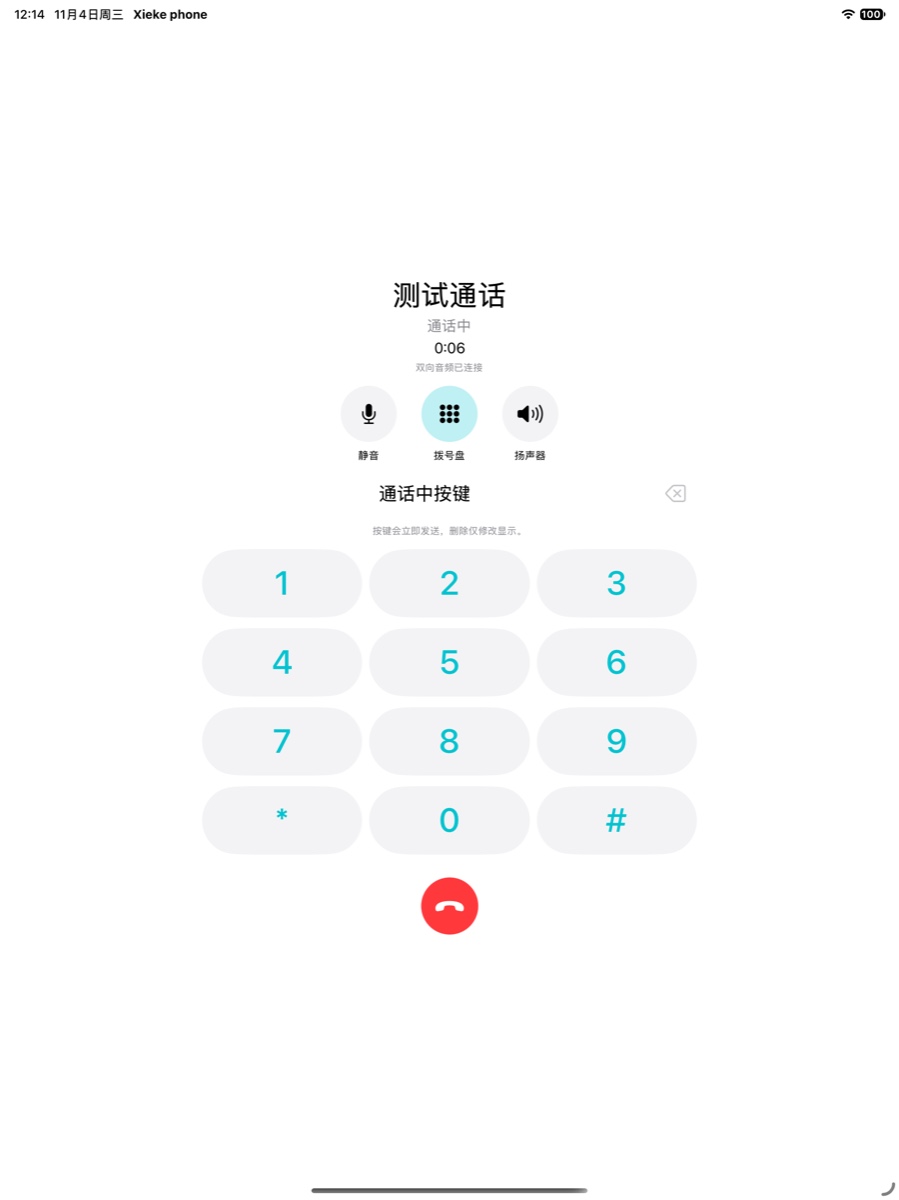
Calls, messages, and contacts
Voice calls
Dial, call back, and check your recent calls. Use mute, speakerphone, and the in-call keypad to navigate voice menus.
SMS conversations
Read and reply to carrier SMS by number. Lock screen alerts depend on the gateway, pilot account, and notification settings.
Account switching
Save multiple pilot accounts, choose which number to use, and import contacts from your device.
Keep the modem local and connect from your phone
The SIM stays in a compatible USB 4G modem. The gateway runs on your own computer or NAS. Your iPhone or iPad connects over the network while the host and cloud service are online.
- 4G modem and SIM
- Local gateway
- Xike cloud service
- iPhone or iPad
Lock screen answering and two-way voice were tested on an iPhone 17 Pro Max and a 12.9-inch iPad Pro in the pilot setup. Follow the guide to test again after changing your device, modem, SIM, or network.
Set up the gateway on your host
Windows 11 x64
Pass the modem into WSL 2 over USB/IP and run the Docker gateway inside WSL.
Mac
Run the gateway in a Linux virtual machine with USB passthrough. Match the image architecture to your Intel or Apple silicon Mac.
fnOS and compatible Linux NAS
Use Docker Compose on the NAS itself. Check that the modem’s USB control and audio interfaces are available first.